
Crop and tool sizes in Annotate
- Review & sharing
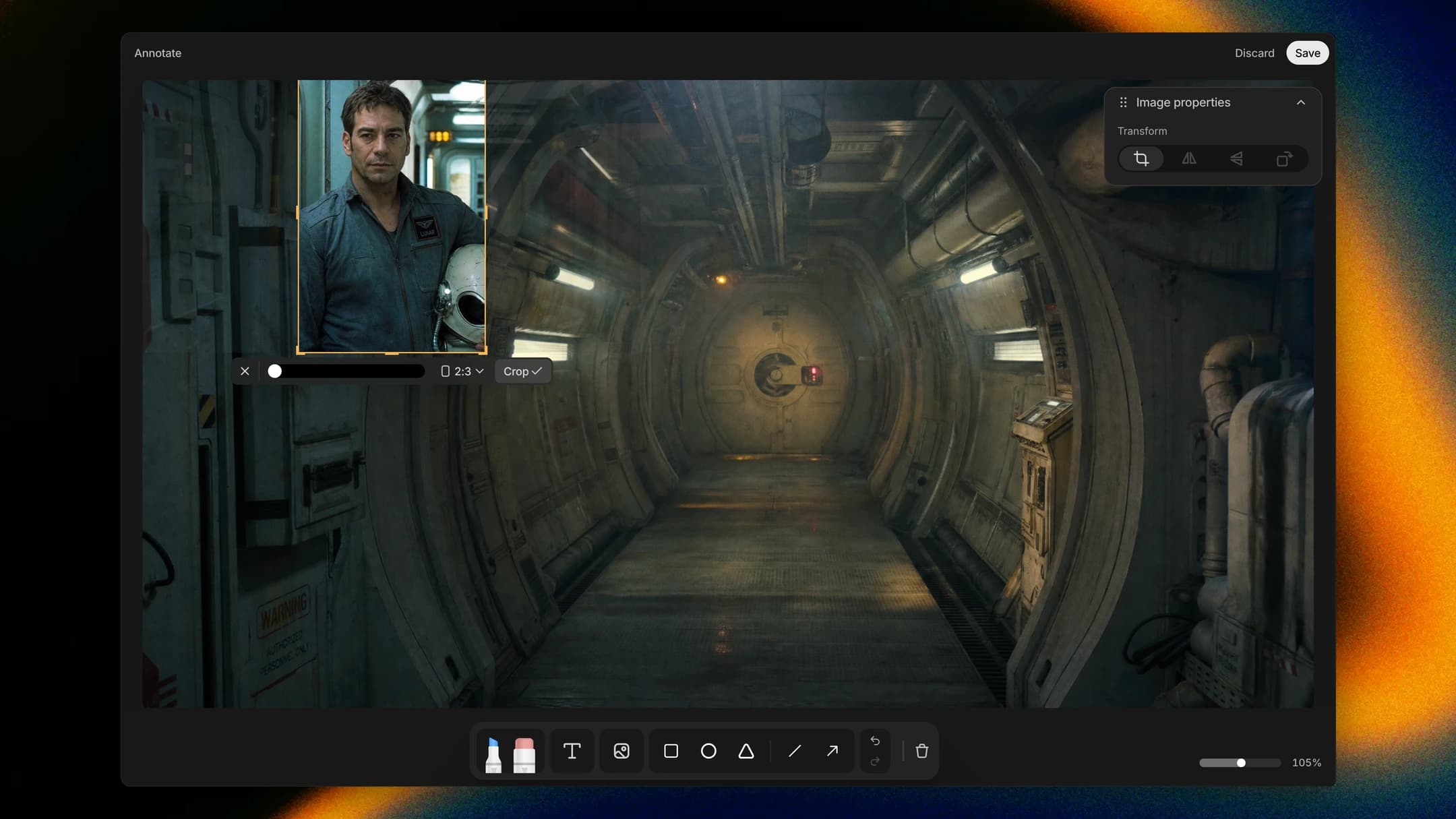
A reference you drop into a markup often only needs its middle. Select the image in Annotate and click Crop in the Image properties panel, then drag the handles or choose Original, Square, Circle, Landscape, Portrait or Wide; the image file itself isn't changed. Press [ and ] to step the size of the active tool or of what you have selected, and Annotate remembers the brush and eraser sizes you used last.
How to find it
Open a take in Annotate, add an image, select it and click Crop in the Image properties panel.